 Buy
Buy Rent
Rent Sell
Sell New
New Prices




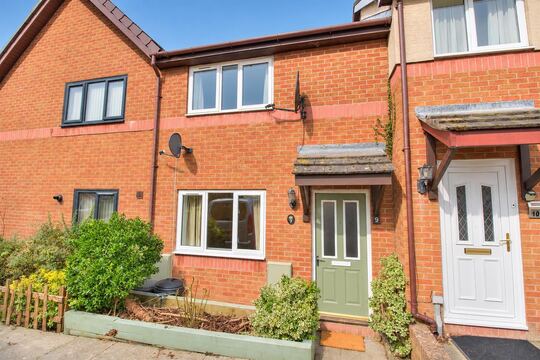
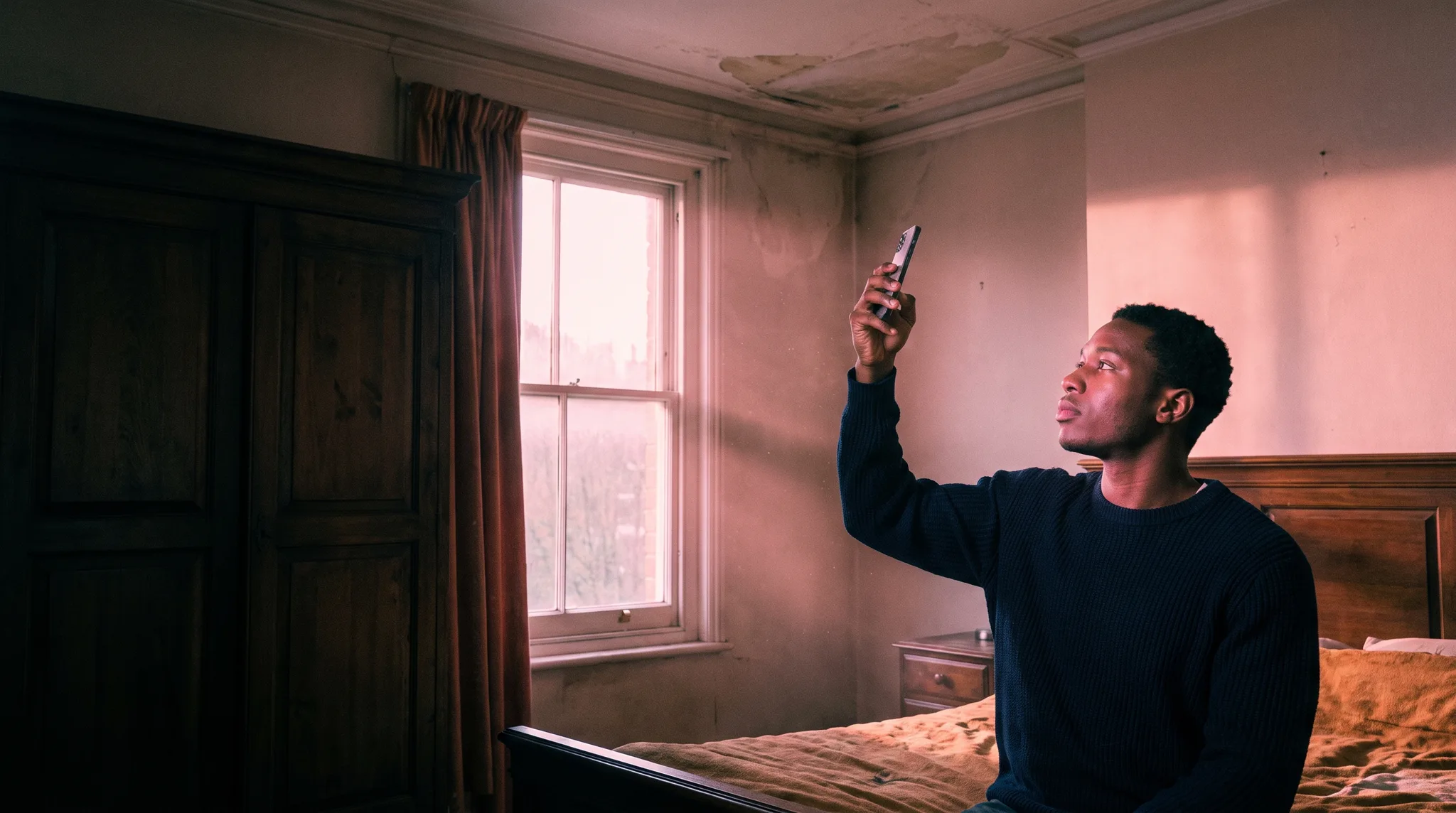
Every room, as it was. Photo by photo.
Schedules of condition, written in Home instead of Word. Walk the property one room at a time, say what you see, and take each photo at the wall it shows. Home numbers the photos, references them in the text and issues a branded PDF.
The whole visit, one screen
Walk it. Say it. Issue it.
A Word template leaves you numbering photos at your desk at night and checking every "see photo 23" by hand. Here the numbering and the references are done for you, so the schedule is finished when the visit is.
How it works
From the front door to a finished PDF.
-
1
Start from New report
Pick Schedule of condition, find the address and choose a starting layout: a three-bedroom house gives you four elevations, front and rear gardens and ten rooms. Rename, add or remove any of them.
-
2
Fill in the instruction
Purpose (before a tenancy, before work next door, party wall, a lease, works to the property), the client, the date, the weather and whether the property was occupied or furnished.
-
3
Walk it one area at a time
Open an area and the screen shows its elements: for a room, the walls, ceiling, floor, joinery and fixtures and fittings; for an elevation, the roof, rainwater goods, walls, windows and doors.
-
4
Dictate what you see
Press Dictate and describe the room. AI Dictation turns speech into text and files each line to its element. Walk into the next room while talking and it goes there.
-
5
Take each photo at the wall it shows
Every element has a camera button. The photo is filed to that element and numbered. Took them on the phone's own camera instead? Image AI files them to rooms with captions for you to check.
-
6
Issue the PDF
Home checks that every photo is filed and no photo number has been typed by hand, then issues a branded PDF with the numbered photo schedule at the back.
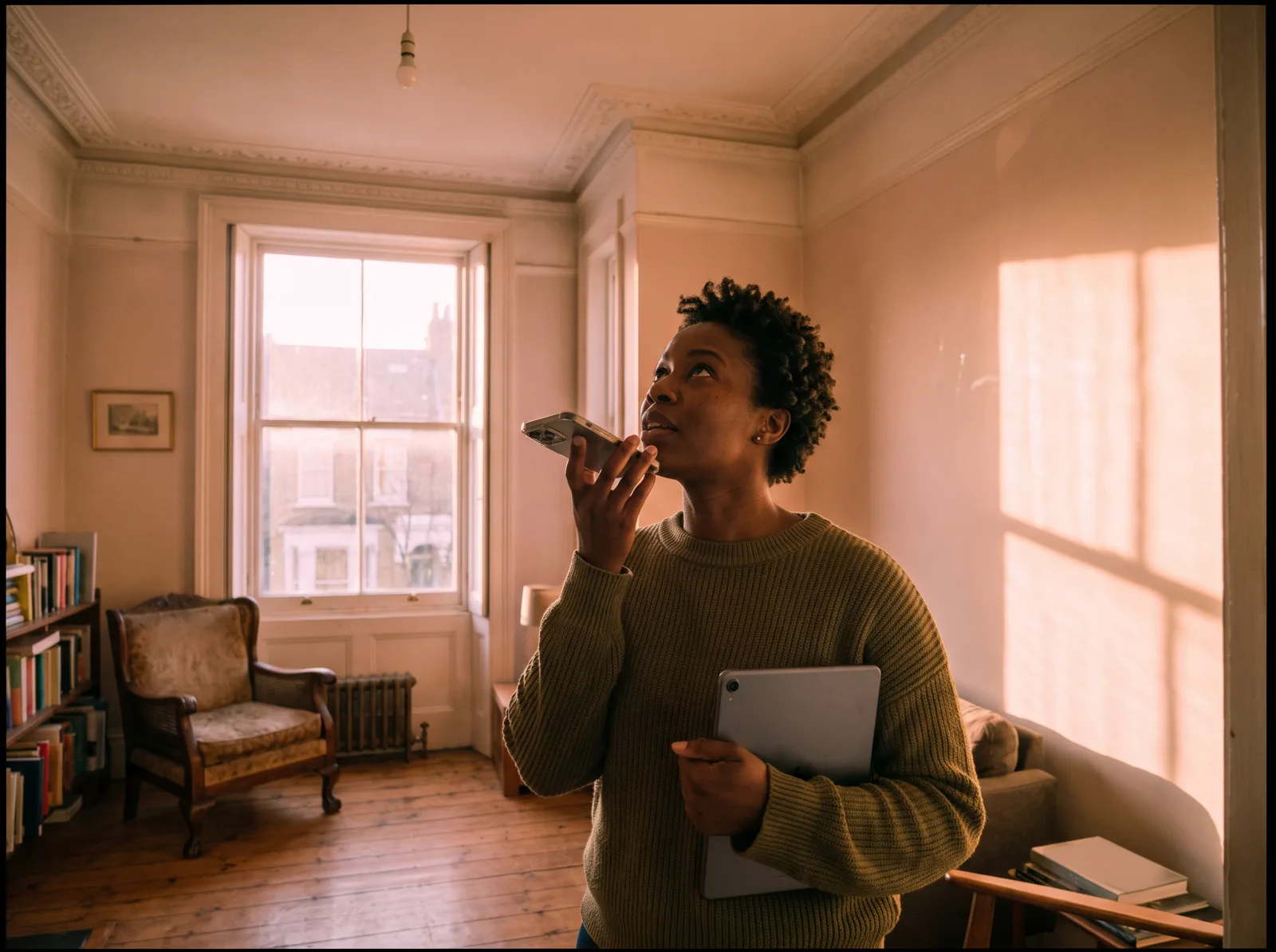
Say it · dictation that follows you
Talk the way you walk. It files as you go.
You describe the kitchen the way you always would. Home splits it into the walls, the floor, the ceiling, the joinery and the fittings, in your own words, with the grammar tidied and nothing added.
Step into bedroom two and say so, and the rest goes to bedroom two. The editor moves there with you.
It never adds a rating, a cause or a recommendation. A schedule of condition records what is there, so that is all it writes down.
“Walls painted plaster, hairline crack above the door, photo twelve. Floor vinyl, worn at the threshold. Now in bedroom two, water stain on the ceiling by the window.”
The number comes from the photo you took at the wall, not from what you said.
Every photo referenced · numbers that keep up
Move a room. The references move with it.
In a Word schedule, moving the kitchen up the list means renumbering every photo after it and hunting down every "see photo" in the text. Here the numbers are worked out from where each photo is filed, every time, so the text always points at the right photo.
Painted plaster. Hairline crack above door, 40 cm. (Photo 5)
Photo 5 · Hairline crack above kitchen door
Same photo, new number. The text still points at it, because the reference is worked out from where the photo is filed, never typed.
Filed, not typed
A photo taken at the kitchen walls belongs to the kitchen walls. Its reference sits at the end of that entry in the PDF.
Typed numbers stopped
If text carries a hand-typed "photo 12", Home shows you where and will not issue until the photo is filed instead.
Nothing left loose
A photo that is not filed to a room has no number and holds the issue button, so nothing slips out unreferenced.
Issue it · what the PDF holds
Six parts, in the order a schedule is read.
Branded with your firm's logo and colours, opening on a photograph of the front of the property.
Instruction and purpose
Who instructed it, why, and a plain statement that it is a record and not a survey.
Date and conditions of inspection
Date and time, who inspected, the weather, and whether the property was occupied or furnished.
Limitations
What was not moved, opened up or tested. Standard wording to start, yours to change.
Exterior, by elevation
Front, rear and sides: roof and chimneys, rainwater goods, walls, windows and doors, external joinery. Then the grounds and boundaries.
Interior, room by room
Ceiling, walls, floor, joinery and fixtures and fittings for every room, each entry followed by its photo reference.
Numbered photo schedule
Every photo with its number, caption, room and element, two to a row, in number order.
When you are asked for one
One record, four reasons to need it.

Before a tenancy
What the rooms looked like on the day the keys changed hands, room by room, so a dispute at the end starts from the same page.
Before work next door
The neighbour is extending or digging a basement. A dated record of every elevation and room before the work starts.

At the start of a lease
The state of the premises when the lease begins, recorded elevation by elevation, for when the lease ends.

Before works to the property
Contractors coming in. A record of the rooms they will work in and the rooms they will walk through.
What it will not do
A record. Not a survey.
The schedule is deliberately narrow. These are the lines it does not cross.
No condition ratings
There is no 1, 2 or 3 anywhere in it. If the instruction needs ratings, write a Level 2 or Level 3.
No advice
No repairs, no costs, no further investigations. Dictation that strays into advice is filed as you said it, for you to edit; Home never adds any.
No valuation
No figure and no opinion of value. Comparables and valuation have their own tools.
Your judgement on site
Image AI suggests where a photo belongs. You check it; every photo can be moved before you issue.
Against the Word template
The same schedule, without the evening at the desk.
| Job | Word template | Home |
|---|---|---|
| Writing up each room | Typed from notes after the visit | Dictated on site, filed to the element |
| Numbering photos | By hand, renumbered when anything moves | Worked out from filing, every time |
| References in the text | Typed, checked by eye | Built from the photos filed to each element |
| Photos from the camera roll | Dragged in and captioned one by one | Image AI files them with captions to check |
| Firm branding | Kept up in each template copy | Your logo and colours on every PDF |
| Where it lives | A folder on someone's laptop | On your reports list with a share link |
Price
Pay as you go, like your other reports.
Write as many drafts as you like. You pay from your wallet when you issue the PDF, and the price is shown before you confirm. No subscription, no minimum.
Questions
Schedules of condition, answered.
What it records
What is a schedule of condition?
A dated, factual record of what a property looks like: every elevation, the grounds and each room, with numbered photographs. It is used before a tenancy, before building work next door, at the start of a lease or before works to the property, so that later everyone can see what was there on the day.
Does it include condition ratings or advice?
No. A schedule of condition records what was seen. It gives no condition ratings, no advice on repair or cost and no opinion of value. If an instruction needs those, it is a survey, and Home has Level 2 and Level 3 for that.
What goes into the finished schedule?
Six parts, in this order: instruction and purpose, date and conditions of inspection, limitations, the exterior by elevation, the interior room by room (walls, ceiling, floor, joinery, fixtures and fittings), and the numbered photo schedule with captions. It closes with your declaration.
Can I change the rooms?
Yes. Start from a layout such as a three-bedroom house or a two-bedroom flat, or start empty. Add, rename, remove and reorder areas as you go. Removing a room never deletes its photos: they go back to the unfiled tray.
Can I edit the limitations wording?
Yes. Every schedule starts with standard limitations (furniture not moved, concealed areas not opened up, services not tested, roofs seen from the ground) and you can rewrite them for the instruction.
On site
Do I have to type anything?
No. Dictate each room and Home files what you say to the right element. Photos are taken against the element you are describing. A schedule for a three-bedroom house can be done from one visit without typing, though you can type or correct anything whenever you like.
How does dictation know which room I am in?
It files to the room you have open. If you walk into the next room while talking and say so, such as "now in bedroom two", the rest goes to that room and the editor follows you there.
What if I say a photo number out loud?
It is dropped. A photo gets its number from where it is filed, not from what was said, so a spoken number can never point at the wrong photo.
Does it work on a phone?
Yes. The editor is built for a phone in one hand: one room at a time, a camera button on every element, a dictate button within reach of your thumb and a next-room button beside it.
What if the signal drops?
Your changes stay on screen and save when the connection comes back. The editor tells you if anything has not saved yet, and warns you before you leave the page with unsaved work.
Photos and references
How are photos numbered?
In report order: elevations first, then the grounds, then each room in the order you walked it, and within each area in the order you took them. The numbers are worked out every time, never stored, so they are always in sequence.
What happens to the references if I reorder the rooms?
They change with the photos. A reference in the text is built from the photos filed to that element, so if the kitchen moves up the list and its crack photo becomes Photo 1, the kitchen walls entry says Photo 1 too.
Can I add the photos after the visit?
Yes. Add them from your camera roll and Image AI files each one to its room and element with a short factual caption. You check its choices and move any photo with two taps.
What if I type a photo number myself?
The schedule will not issue while text carries a typed photo number, because it would go stale as soon as a room moved. Home shows you where it is, and you file the photo to the element instead.
How many photos can a schedule hold?
Up to 400. A three-bedroom house typically needs far fewer, and every one appears in the numbered photo schedule at the back of the PDF.
Issuing and price
What does the PDF look like?
It carries your firm's logo and colours, opens on a photograph of the front of the property, and runs through the six parts in order. Each element's text is followed by its photo reference, and every photo appears in the schedule with its number, caption and room.
What does it cost?
Pay as you go, like your other reports. You pay from your wallet when you issue the PDF, and the price is shown before you confirm. There is no subscription for schedules of condition.
Can I re-issue after a change?
Yes. Edit the schedule and issue it again; the numbers and references are worked out afresh for the new PDF.
Who can use it?
Surveying firms that claim their listing on Home.co.uk. Claiming is free, and the schedule of condition sits in the same New report picker as your Level 2, Level 3 and snagging reports.
Write your next schedule in Home.
Claim your firm's listing to open the New report picker.
More tools
Explore the rest of the surveyor toolkit

Home Academy
Short lessons on Home tools
Learn the steps, try the real tools and follow a first-week path to your first Otto report.

Otto
AI auto-mode RICS report writer
Dictate on-site, upload photos, get a finished, fully-routed Level 2 or Level 3 report in minutes.

Level 2 Report Writer
RICS Home Survey Level 2
Field-by-field RICS Level 2 reports with inline AI suggestions, image gallery, comparables and one-click branded PDF.

Level 3 Report Writer
RICS Building Survey Level 3
Comprehensive Level 3 Building Survey reports with deep technical sections, custom rating scales and AI legal-adviser notes.

Surveyor Comparable Tool
Sold + rental comps in one click
Auto-fetch sold and rental comparables within a 1-mile radius, weighted valuation range, branded PDF appendix for any survey.
Snagging Report Builder
New-build defect tracker
Build professional new-build snagging lists with location-based defect tracking, photos, urgency, status and PDF export.

AI Dictation
Voice-to-fields routing
Speak observations on-site; AI routes every sentence to the correct RICS field with confidence scores and replayable audio.

Image AI
Auto-categorise survey photos
Upload up to 200 photos; vision AI tags each to the right RICS element, rates condition, extracts defects and picks the best 35 for the report.
Style Profile
Your firm's writing fingerprint
Teach the AI to write like your firm — upload past reports, the AI extracts a 25-dimension writing fingerprint and applies it to every future auto-mode report.

Property Viewer
Pre-survey property intelligence
Look up any UK property and instantly see EPC, energy renovation costs, broadband coverage, environmental risks (flood, radon, mining, landfill), invasive plants, sales history and listing status — all in one dashboard.

Property Data Drawer
EPC + risks + comps in one panel
Open the property data drawer in any report to see EPC, environmental risks, listing history and comparables — copy-paste ready.

Standard Phrases
Reusable language library
Personal, firm-wide and industry-preset phrase libraries — insert with one click and use to train AI routing for voice consistency.

Required photos
Every report leaves with the photos you expect
Set the photos each Level 2 and Level 3 report must contain. Surveyors see a checklist as they write, and a report can't be issued until each photo is there or the reason is written down.

RICS Standards Check
A Home Survey Standard check before you sign
One-click AI check against the RICS Home Survey Standard — flags missing content, weak ratings and structural gaps before you sign the report.

Quote Builder
Clear choices, a date to decide
Send branded survey quotes with up to three options, a PDF and an expiry date. Reuse service templates, track responses and see your win rate.

Home Payments
Paid faster, no invoicing
Home Payments mission control — customers pay at booking through a Stripe-verified checkout, payouts land on a schedule you can see, payment links cover your private work, and there is no invoice chasing ever again.

Bookings CRM
Every job, one pipeline
The surveyor CRM built into the platform — Homemove jobs land pre-paid with customer and property attached, enquiries convert to bookings, and the whole pipeline runs from one screen.

Panel work
Every panel job, every deadline
Run jobs from the other panels you work for beside your own. List each panel with its usual fee and turnaround, add a job in under a minute, and watch every report deadline count down.

Calendars & Requests
A diary that fills itself
Per-surveyor diaries with live availability — keep your dates current and we book real jobs straight in, with inbound availability requests answered in a tap.

The firm inbox that knows the job
A full mail client scoped to your firm — @home.uk purpose mailboxes and per-user addresses, with every thread landing against the booking it belongs to.

Documents & e-sign
Signed before you set foot on site
Terms of engagement sent with the booking, tracked from sent to signed, chased automatically and stored against the job — no more chasing clients to sign.

Insurance & conflict checks
Safe to take the job
Every new job is checked against your firm's own history, so you know when you have surveyed a property before. Your PI insurance is tracked with reminders, and new reports can't be issued once recorded cover has lapsed.

Telephony
The firm number that never misses a job
A phone system built into the platform — take calls in the browser, forward to mobiles, ring the whole team at once, and keep a shared call log with optional recording.

Customer portal
Your client, never in the dark
A white-label portal under your firm's branding and domain — booking status, reminders and secure report delivery, so customers stop asking where things are.

Website builder
Built by asking, not designing
A firm website built and edited by talking to Inigo — brand and theme sync, a real section library, custom domains via CNAME, and enquiries that land in your pipeline.

Campaigns
Win the next job from the last one
Firm email campaigns with per-recipient tracking — sends, opens, clicks and read time — built on consented lists with one-click unsubscribe handled for you.

Reviews & badges
Proof that wins the next booking
Reviews earned on real completed jobs — scored by the homemover, shown on your directory profile — plus embeddable trust badges that carry the proof to your own website.

Performance
See the pipeline, beat the clock
Firm analytics without the spreadsheets — pipeline conversion, team performance and your own turnaround speed, the fourth lever of your rate.

Inigo
The AI assistant for surveyors
Ask in chat, dictate by voice, or click any element for contextual help — grounded answers on valuations, sales history and market data, inside the platform.

AI Training
Teach it your standard
Upload past reports and press Train — the AI learns your firm's defect language, ratings philosophy and phrasing, and Otto writes with it on every job.

Environmental Report
Every risk, one report
A one-click environmental risk report for any property — flood, ground stability, environmental factors and planning constraints, delivered as a PDF.
Free directory listing. Pay-as-you-go toolkit.
Every RICS-regulated surveying firm gets a verified profile, direct bookings from home.co.uk consumers and the surveyor toolkit included with the account. No subscription. No pay-per-lead. No commission on the job. Pay only when you use the premium AI tools.
2 minute setup · Verified against the RICS register · Trusted UK property platform since 1995